








⏱️ 5 min read
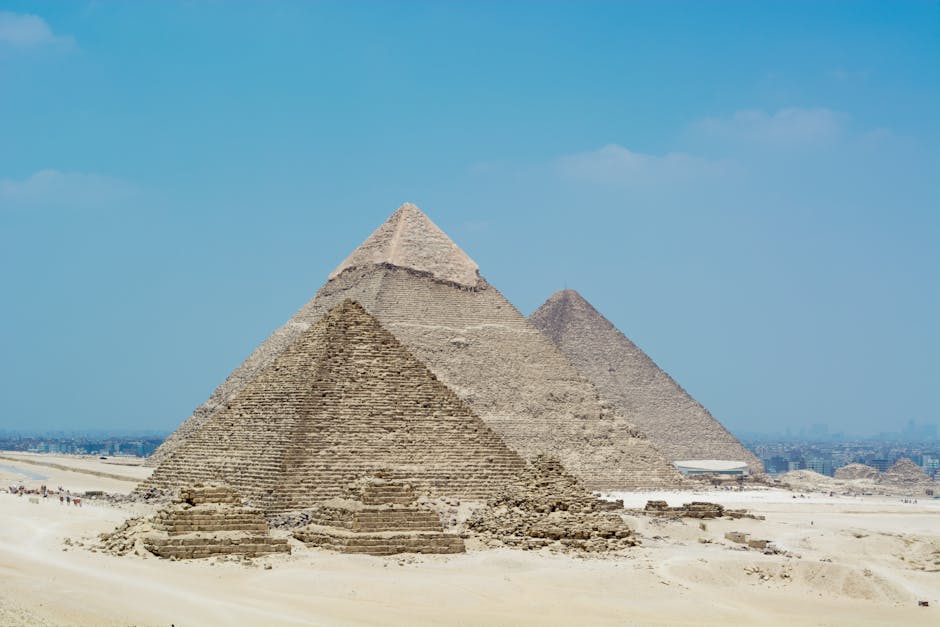
Standing tall against the Egyptian skyline, the Great Pyramids of Giza appear today as weathered, sandy-brown monuments to an ancient civilization. However, these architectural marvels once presented a dramatically different appearance that would have dazzled observers thousands of years ago. The pyramids were originally covered in brilliant white limestone casing stones that transformed them into gleaming beacons visible for miles across the desert landscape.
The Original Limestone Casing
When the pyramids were first constructed during Egypt's Old Kingdom period, approximately 4,500 years ago, their outer surfaces were completely encased in highly polished Tura limestone. This fine white limestone was quarried from the hills on the eastern bank of the Nile River, specifically from the Tura and Masara quarries located near modern-day Cairo. The ancient Egyptians selected this particular limestone for its exceptional quality, fine grain, and brilliant white color.
The casing stones were cut with remarkable precision, fitted together so tightly that a knife blade could not be inserted between them. Each stone was carefully dressed and polished until it achieved a smooth, reflective surface. The Great Pyramid of Khufu alone required approximately 144,000 casing stones to cover its exterior completely. When intact, these gleaming white surfaces would have reflected the intense Egyptian sunlight, making the pyramids visible from great distances and creating an almost supernatural brilliance.
The Crowning Glory: The Golden Capstone
Adding to the pyramids' spectacular appearance, each structure was topped with a pyramidion, or capstone, that many historians believe was covered in gold or electrum, a naturally occurring alloy of gold and silver. This golden peak, combined with the white limestone casing, would have created a stunning visual effect. As the sun moved across the sky, the pyramids would have appeared as massive prisms of light, with the golden capstone gleaming brilliantly above the white stone surfaces.
Symbolic and Religious Significance
The choice of white limestone and golden capstones was not merely aesthetic. The brilliant white color held deep symbolic meaning in ancient Egyptian culture, representing purity, divinity, and the connection between the earthly realm and the heavens. The reflective surfaces were believed to channel solar energy and served as physical representations of the sun's rays descending to earth. This aligned perfectly with the religious beliefs of the time, particularly the worship of Ra, the sun god.
What Happened to the White Casing?
The transformation of the pyramids from gleaming white monuments to the rough, stepped structures we see today occurred over many centuries through a combination of natural deterioration and human intervention. The most significant factor in the loss of the casing stones was human activity, particularly large-scale quarrying of the valuable limestone for use in other construction projects.
The majority of the casing stones were removed during the Middle Ages, particularly following a major earthquake in 1303 CE that loosened many of the outer stones. The Mamluk Sultan An-Nasir Nasir-ad-Din al-Hasan ordered the removal of these stones to construct mosques and fortresses in Cairo. The limestone was particularly valuable for these projects because it had already been quarried, shaped, and was readily available at the pyramid sites.
Notable Structures Built from Pyramid Stones
Many of Cairo's most famous Islamic-era buildings contain limestone that once covered the pyramids. These include:
- The Mosque-Madrassa of Sultan Hassan, one of the largest mosques in the world
- Various fortifications throughout Cairo
- Bridges and other infrastructure projects spanning several centuries
- Numerous public buildings and private residences in medieval Cairo
Archaeological Evidence of the Original Appearance
Despite the extensive removal of casing stones, archaeologists have found compelling evidence of the pyramids' original white appearance. Some casing stones remain in place at the base of several pyramids, providing direct physical evidence of the original construction. The Pyramid of Khafre (Chephren) retains a portion of its white limestone casing near its apex, offering modern visitors a glimpse of how magnificent these structures once appeared.
Additionally, the Pyramid of Menkaure still has some of its original casing stones intact at its base, along with portions that were faced with red granite. Ancient texts and descriptions from Greek and Roman historians also document the pyramids' brilliant white appearance, including detailed accounts by Herodotus and other classical writers who visited Egypt when more of the casing remained intact.
Modern Understanding and Reconstruction Efforts
Contemporary Egyptologists and archaeologists have used various methods to understand and document the pyramids' original appearance. Computer modeling, analysis of remaining casing stones, and examination of ancient quarry sites have allowed researchers to create detailed reconstructions of how these monuments looked in their pristine state.
Some preservation efforts have focused on protecting the remaining casing stones and preventing further deterioration. While there have been discussions about partial restoration projects, the consensus among archaeologists and preservation experts has been to maintain the pyramids in their current state, as they represent thousands of years of history rather than just their original construction.
The Legacy of the White Pyramids
Understanding that the pyramids were originally white fundamentally changes our perception of ancient Egyptian civilization and its capabilities. The gleaming structures would have been powerful symbols of pharaonic authority and divine connection, visible across the landscape as unmistakable markers of Egypt's power and sophistication. This knowledge enriches our appreciation for the engineering prowess and aesthetic vision of the ancient builders, reminding us that these monuments were not always the weathered antiquities we see today, but rather stunning architectural achievements that commanded awe and reverence in their original glory.